Users, Roles, and Authentication
This page provides an overview of user roles, groups, and login authentication in Ultipa Manager. These settings help administrators maintain secure and efficient access control across the system.
Manage Users
To manage users, navigate to Instances > Admin Settings > Users. Note that only admin users can access Admin Settings.
As an admin, you can:
- Change a user's role: User or Admin.
- Update a user's status: Active or Blocked. Blocked users cannot log in to Manager.
- Assign or modify a user's group.
- Reset a user's password.
- Reset a user's MFA.
- Remove users.
- Create users.
- Manage a user's connections.
User Roles
There are two roles for Manager users:
- User: The default role assigned upon self-registration.
- Admin: Includes the
rootuser and users who are granted the admin role.
User Groups
User groups are essential for organizing and managing users efficiently in a system, especially when there are multiple users with different roles and responsibilities.
To manage user groups, navigate to Instances > Admin Settings > Groups. Note that only admin users can access Admin Settings.
As an Admin, you can:
- Edit groups: group name, user role, and users in the group.
- Delete groups.
- Add groups.
Login Authentication
Ultipa Manager supports two authentication modes:
System
This is the default method. User accounts are managed and authenticated within Ultipa Manager.
LDAP
When enabled, user login credentials are verified via your organization's LDAP server, which is commonly used in enterprise environments for centralized access control.
To enable LDAP login:
- Navigate to Instances > Admin Settings > Settings > Security > Login Auth Model. Note that only admin users can access Admin Settings.
- Toggle Enable LDAP to on and configure the following:
Settings | Description |
|---|---|
| LDAP URL | The LDAP server address that starts with ldap:// (e.g., ldap://ldap.example.com:389). |
| Ldap Base Dn | The base Distinguished Name from which the user searches begin. It defines the root location in your LDAP directory tree, like dc=example,dc=com. |
| Attribute | The login identifier attribute, such as uid, sAMAccountName, or cn. |
| Admin DN | The full Distinguished Name of an LDAP user account with permission to search for users in the directory. |
| Admin Password | The password for the above admin DN. |
| Groups Search Base | The base DN under which the system should look for groups, such as ou=groups,dc=example,dc=com. |
| Group Class | The LDAP object class used for groups, such as groupOfNames, or group. |
| Group Member Attribute | The attribute in a group entry that lists its members, such as member, or memberUid. |
| Group Member User Attribute | Corresponding user attribute for group mapping, such as dn or uid. |
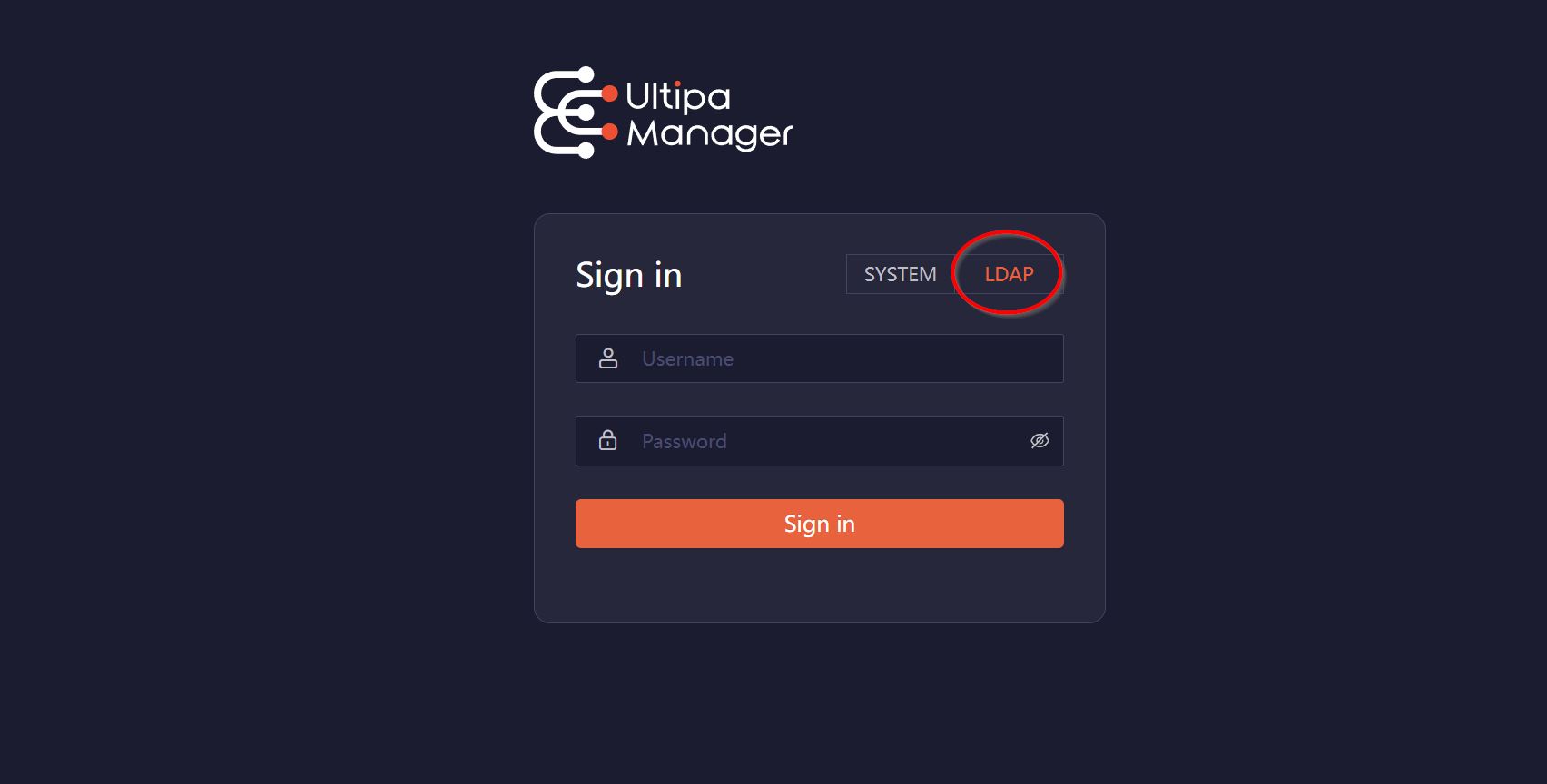
To log in to Ultipa Manager using an LDAP account, select LDAP on the login page, then enter your LDAP username and password to proceed.
NOTEUltipa Manager enforces the System authentication mode for the user
root.
Once an LDAP user has logged in to Manager, admins can manage the user from Instances > Admin Settings > Users.
Multi-Factor Authentication (MFA)
MFA enhances security by requiring users to verify their identity using an authentication app:
- During the first login, users will be prompted to set up an MFA app.
- On each login, a time-based one-time code is required in addition to the password.
Admins can enforce MFA for all users via Instances > Admin Settings > Settings > Security > Force Enable MFA, or users can opt in individually.
Password Strength
Admins can define password strength via Instances > Admin Settings > Settings > Security > Password Strength:
- Low: Minimum 6 characters.
- Good: Minimum 6 characters, including letters, numbers, and special characters.
- Strong: Minimum 8 characters, including uppercase and lowercase letters, numbers, and special characters.
The designated password rule applies to all users managed by Ultipa Manager. LDAP-authenticated accounts are not subject to these requirements.