
Manage Instances
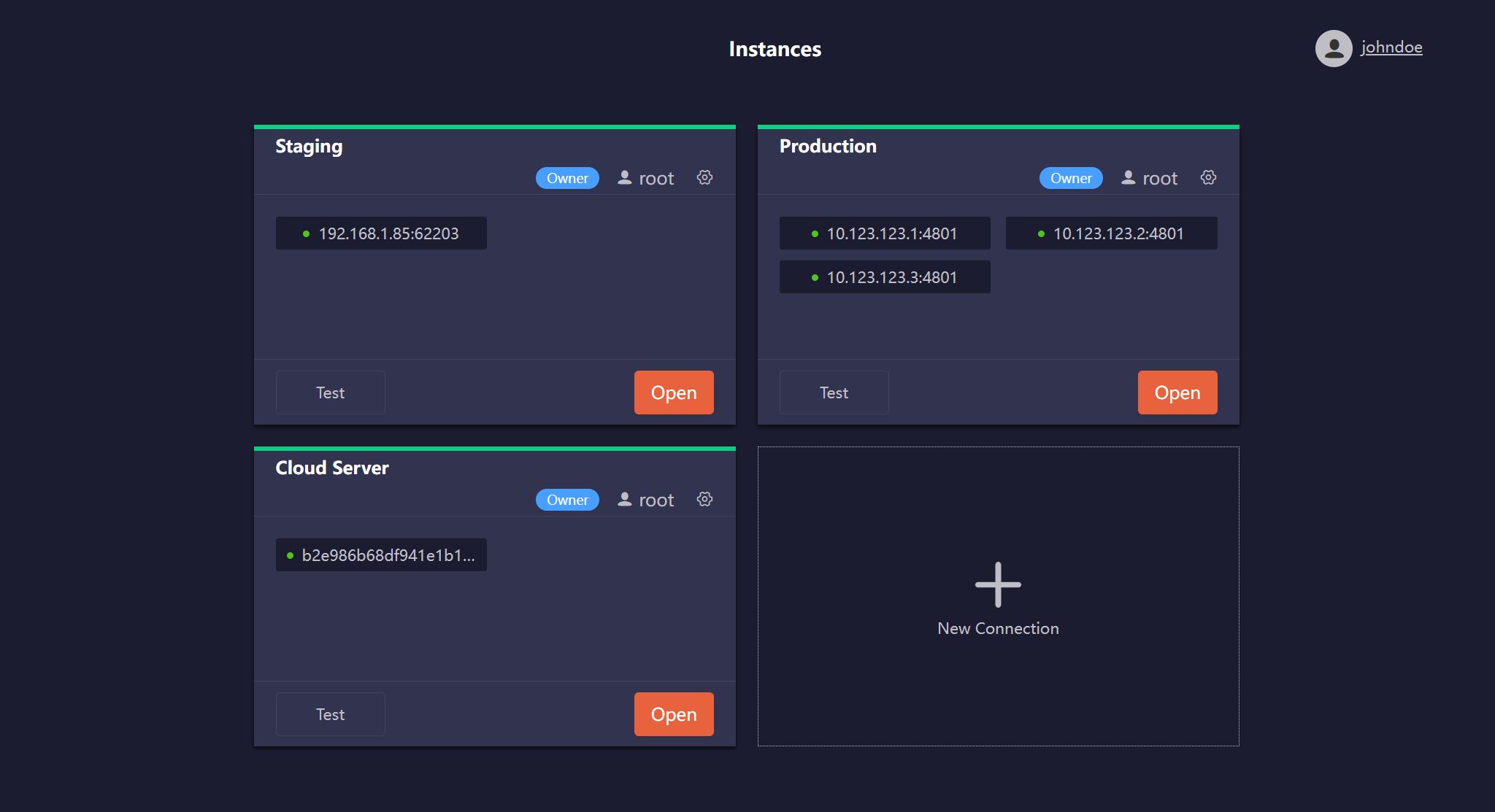
After login, users land on the Instances page, where you can manage all your Ultipa graph databases. Follow the steps here to add connections to database instances.
Connection Status
A green bar at the top of a connection card indicates an active connection, while a red bar means the corresponding database server is offline. Click Test to refresh the connection status.
Switch Connections
Click the Open button on a connection card to access the corresponding database:
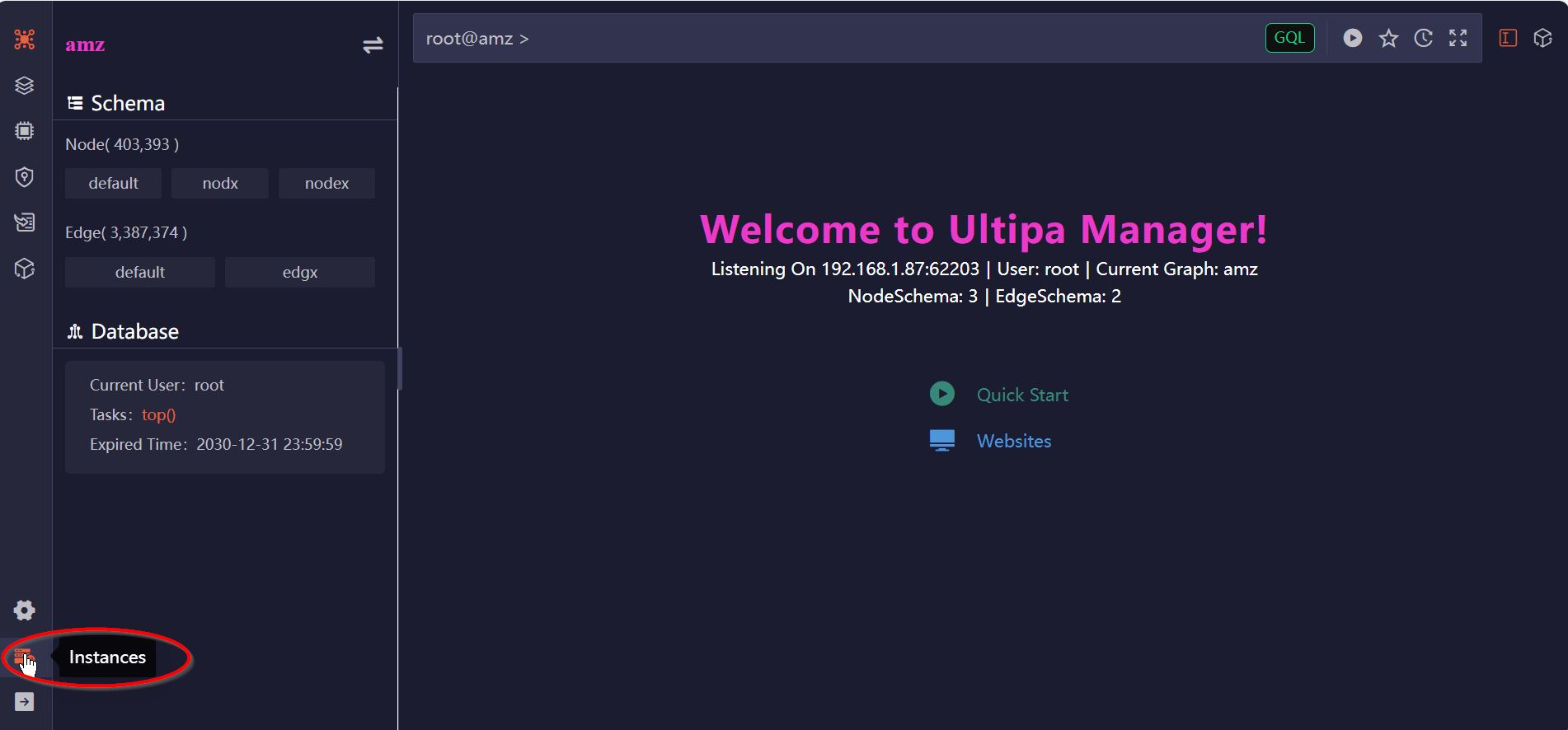
After opening a database, click the Instances icon in the bottom-left corner to return to the Instances page and switch to another connection.
Share Connections
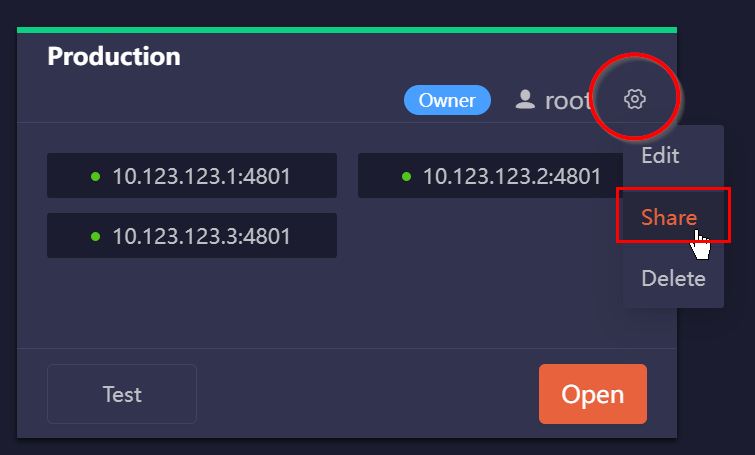
Once you create a connection, you become its Owner and can share it with other Manager users or groups. To share a connection, hover over the Settings icon on the connection card and click Share:
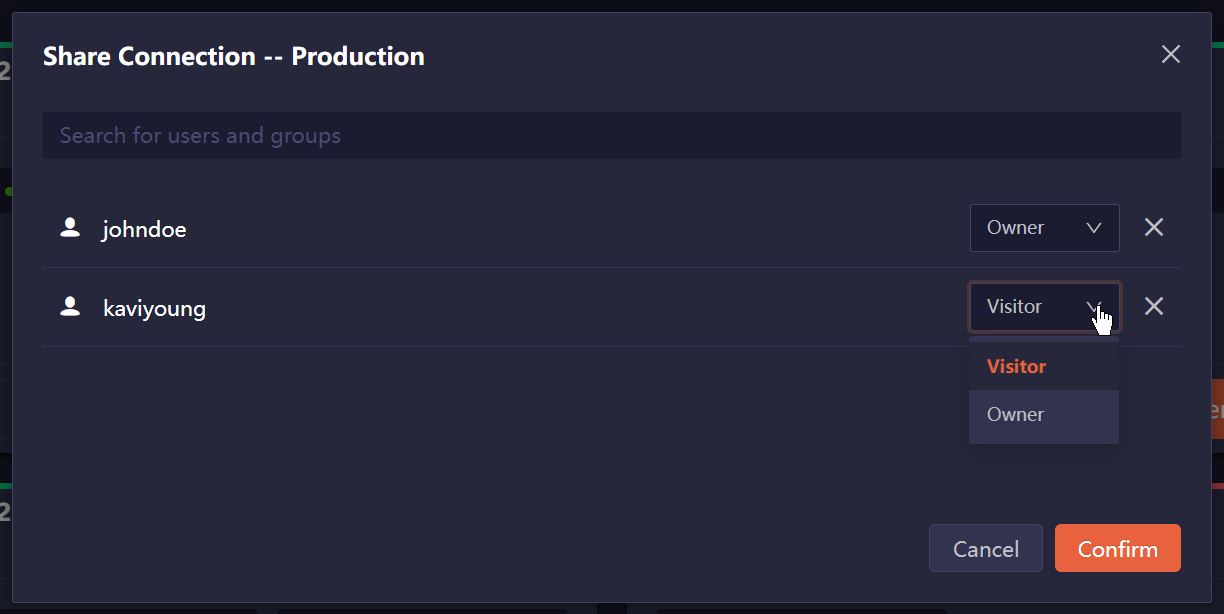
In the pop-up window, search for the Manager users or groups you want to share the connection with, and specify the role to assign to each:
- Visitor: The user cannot view or modify the connection details, including the database user crediential used for the connection. Visitors are also unable to delete or share the connection.
- Owner: The user has full control over the connection, including the ability to modify, delete, and change the users with whom the connection is shared.
Oversee Connections as an Admin
As an admin of Manager, you can manage the connections created and shared across all users via Instances > Admin Settings:
- Click Users, edit a user, and go to the Connections tab to manage all connections the user has.
- Click Connections to manage connections created by all users. You can also add connections for any user from this page.