
Run Queries
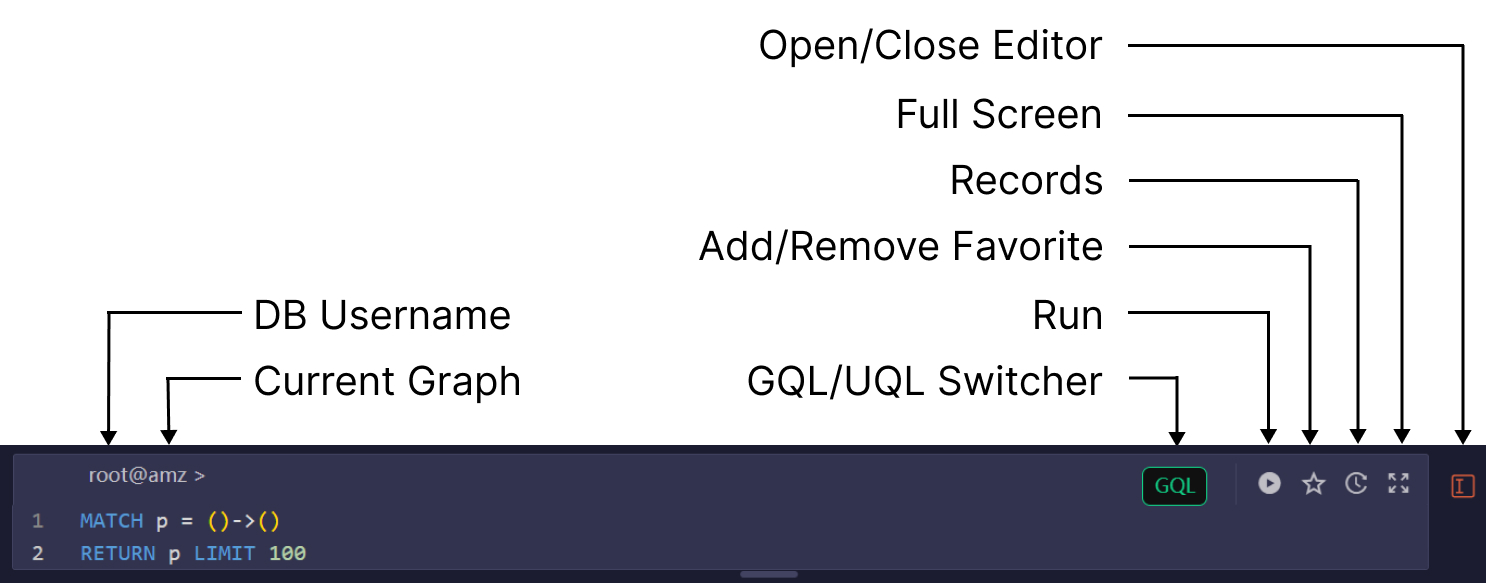
You can use the Editor to write and run GQL or UQL queries from the top of the right-hand panel in Ultipa Manager.
Write Queries
You can write either GQL or UQL to read from and write to the database. The Editor offers hints for statements and keywords.
Run Queries
Click the Run icon to execute the entire query. Ensure the corresponding mode is selected using the GQL/UQL Switcher, and the queries are executed against the current graph.
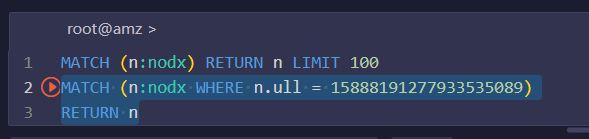
You can also select a portion of the statements in the Editor and execute only the selected part by clicking the Run icon that appears next to the selection:
Query Histories
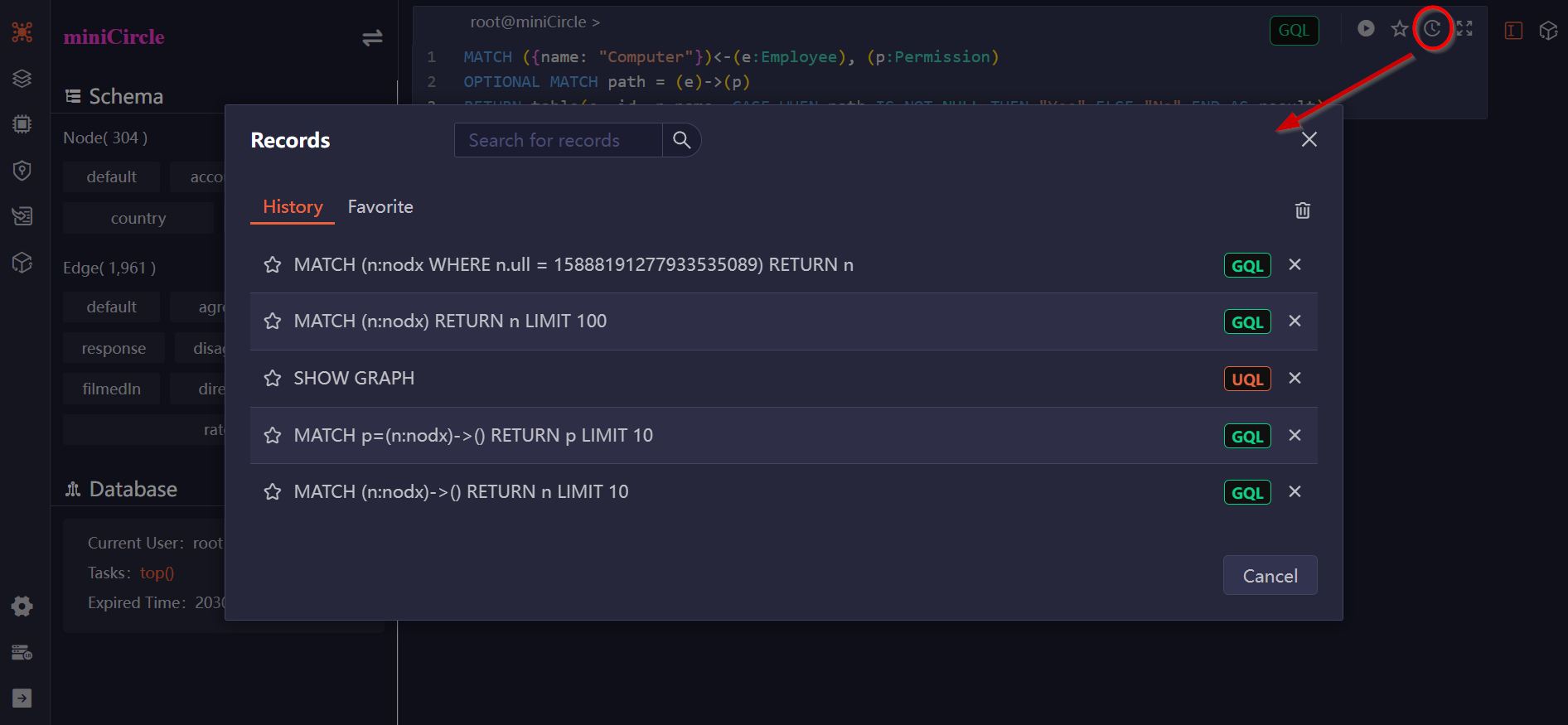
The Editor keeps a history of executed queries. To browse through previous queries, place the cursor anywhere in the Editor and press the Up or Down arrow keys. If the Editor contains multiple lines, hold Ctrl and press Up or Down to scroll through the history.
Alternatively, click the Records icon in the Editor to view all executed queries. If you click on any query, it will be populated into the Editor, replacing any existing content.
Favorite Queries
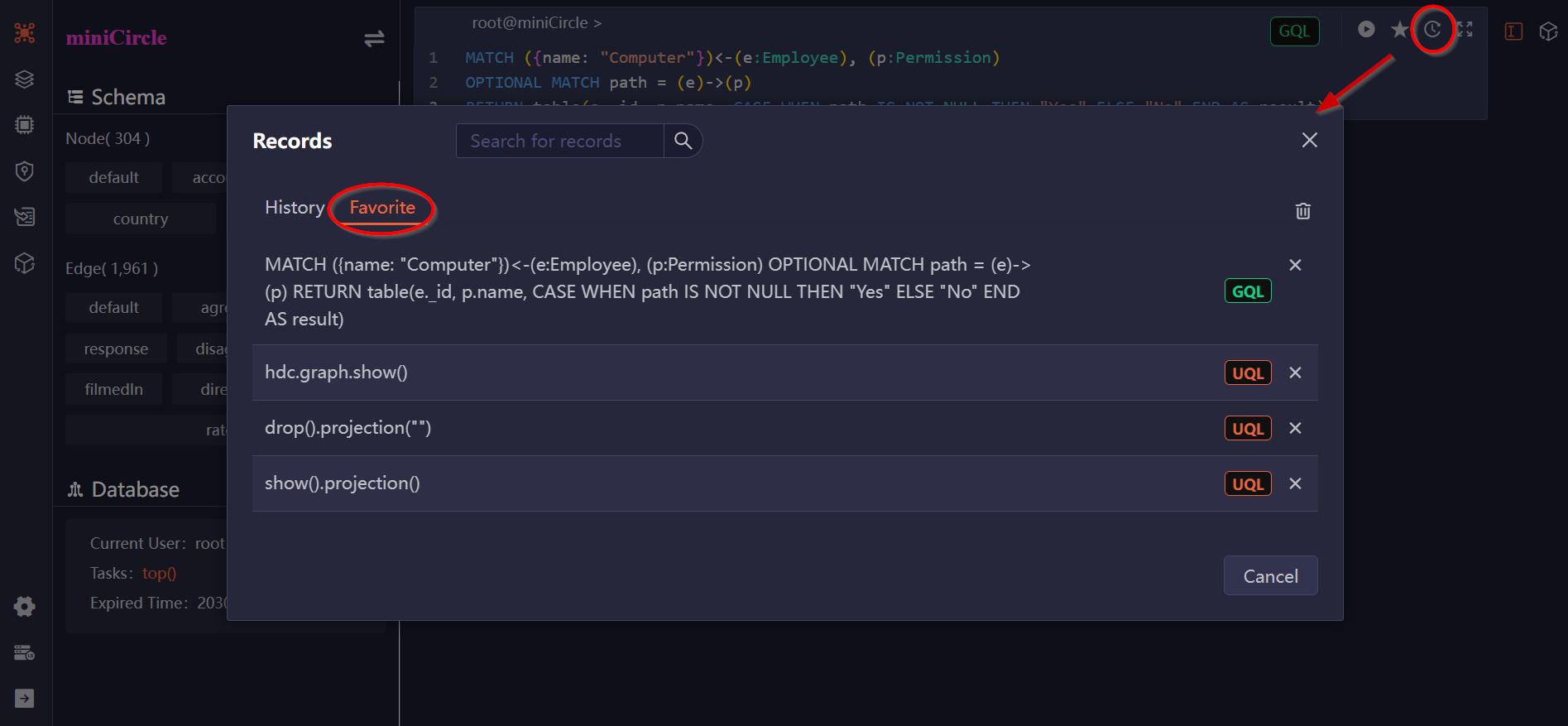
Click the Favorite icon in the Editor to add the current query to your favorites or remove it from the favorites. To view all saved queries, click the Records icon and select the Favorite tab.
Keyboard Shortcuts
The Editor supports the following keyboard shortcuts:
| Function | Single-line Mode | Multi-line Mode |
|---|---|---|
| Run query | Enter | Ctrl + Enter |
| Insert line break | Shift + Enter | Enter |
| Browse query history | Up/Down | Ctrl + Up/Down |
| Close hint | Tab | Tab |