
UQL Editor
The UQL Editor can be accessed at the top of the right panel in almost all functional modules in Ultipa Manager.
Here is an overview of the features:
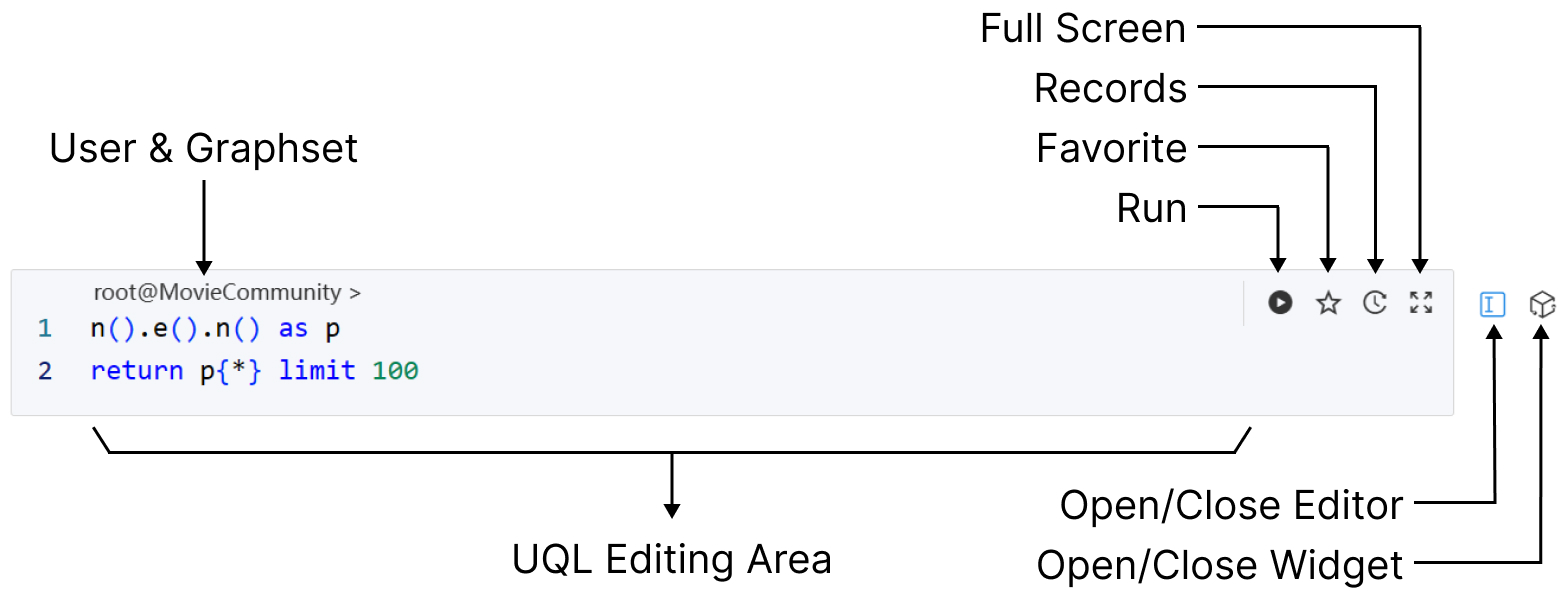
User & Graphset
The names of the current database user and graphset are displayed. You can click on the graphset name to view all the graphsets within the instance and switch to another one as needed.
UQL Editing Area
You can write UQL in the editing area. The UQL Editor provides hints for commands, keywords, parameters, as well as the schemas and properties in the current graphset. Different elements of the UQL are displayed in different colors to improve readability and understanding.
NOTEWhen interacting with the Ultipa Manager interface, certain actions, such as clicking the View icon of a schema, will result in the corresponding UQL being sent to the UQL Editor. In some cases, you need to execute the UQL manually to complete the action.
Keyboard Shortcuts
| Function | Single Line | Multi-line |
|---|---|---|
| Run UQL | Enter | Ctrl + Enter |
| Line Break | Shift + Enter | Enter |
| History UQL | Up/Down | Ctrl + Up/Down |
| Close Hint | Tab | Tab |
Run
Click the Run icon located on the right side of the editor to execute the entire UQL code written in the editing area.
Additionally, UQL Editor provides the flexibility to choose a portion of the code and execute it by clicking the Run icon that appears in front of the selection area:

Favorite
Click the Favorite icon to add or remove the UQL codes from the editing area to your Favorite UQLs, which you can access in the Records section.
Records
Click the Records icon to open the UQL Records window. This window includes lists of History and Favorite UQLs, with each list saving a maximum of 100 UQL records.
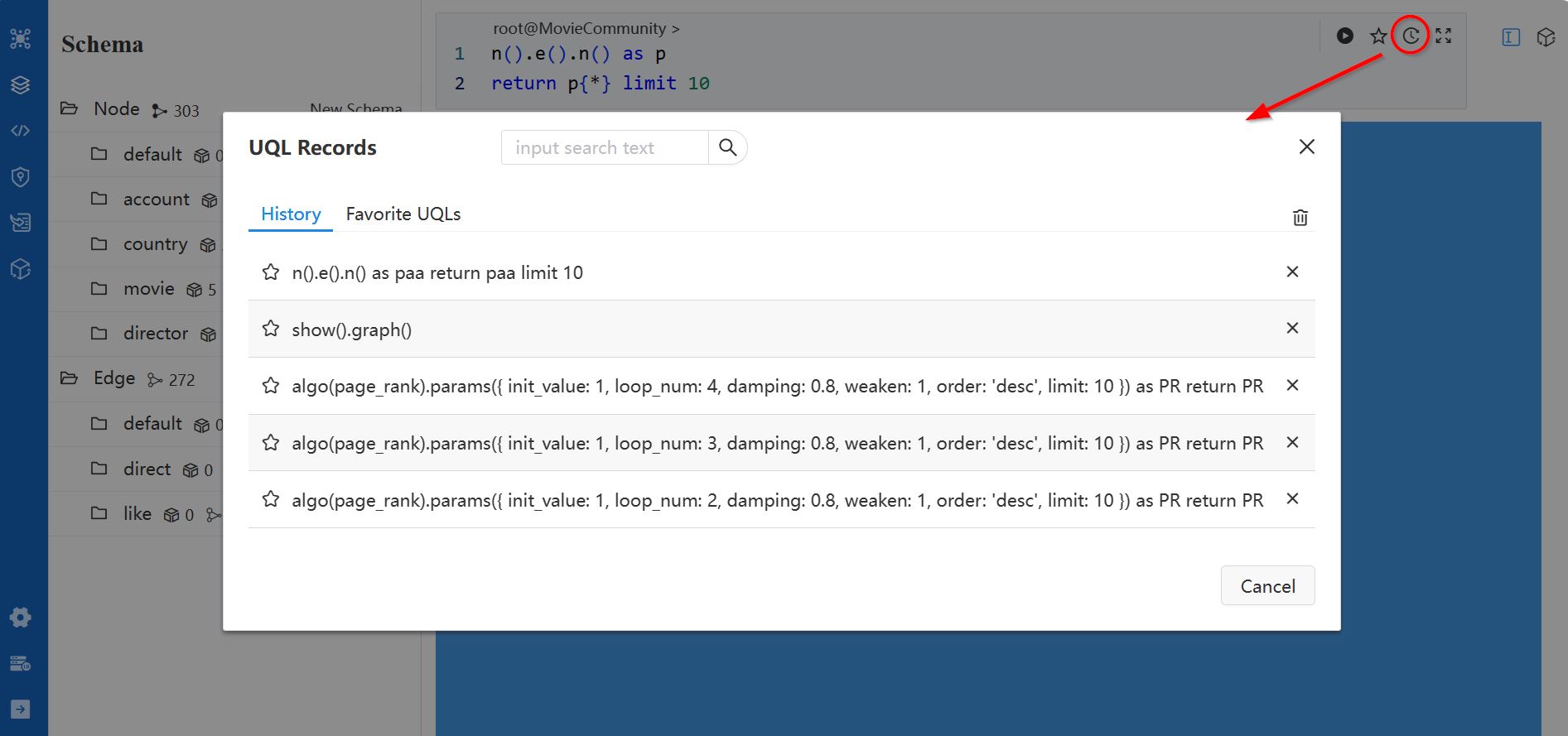
When clicking on any record in this window, the corresponding UQL will be immediately sent to the UQL editing area, overwriting any existing content. To delete a record, simply click the × icon located on the right side of each UQL entry.
Open Widget
Click the Widget icon to open the list of published widgets.
In the list of Widgets, you can pin commonly used widgets to the Pinned list for quick access.
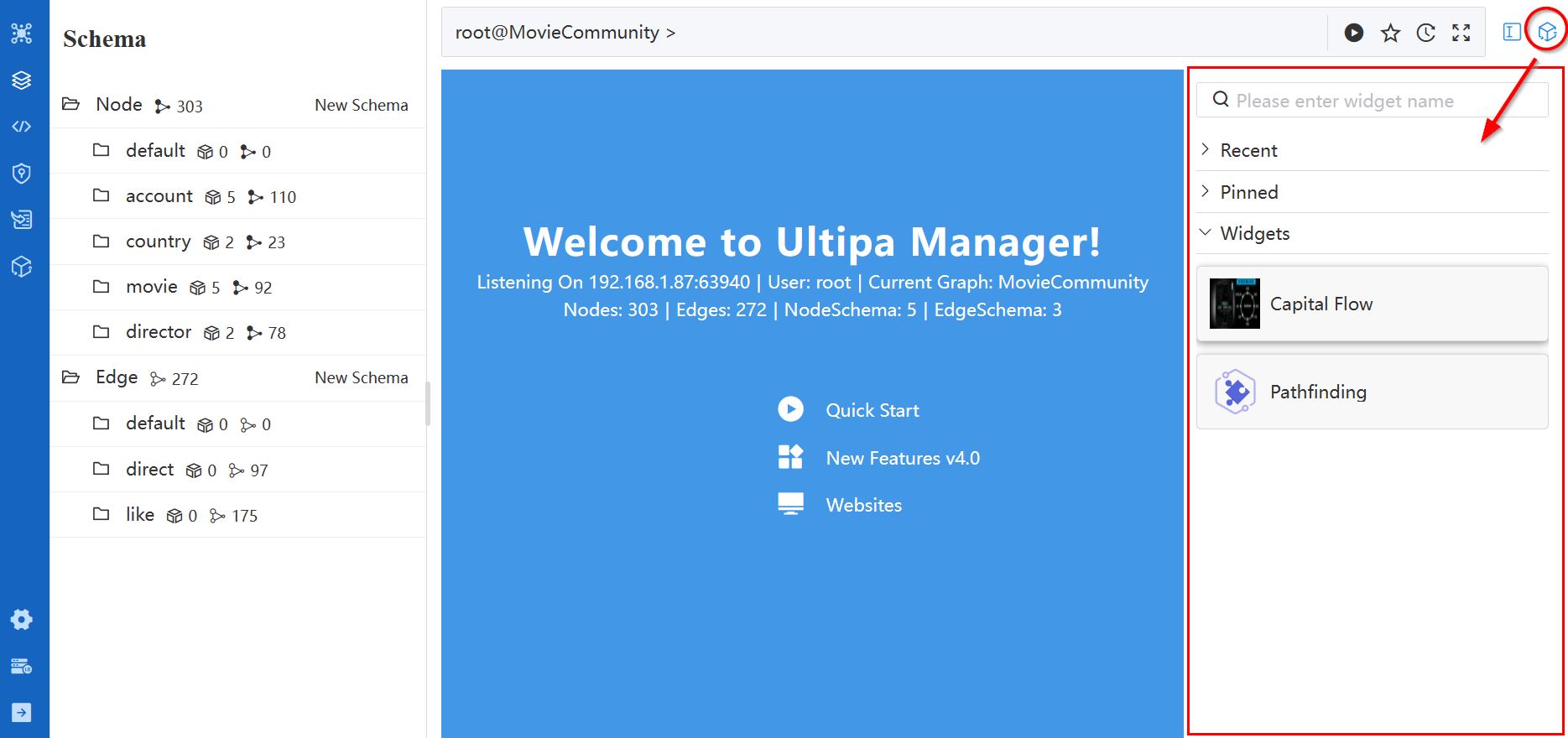
NOTEManage all widgets with the Widget module.