
Import from GraphML
This page demonstrates the process of importing data from a GraphML file into a graph in Ultipa.
NOTEThe following steps are demonstrated using PowerShell (Windows).
Generate the Configuration File
Open the terminal program and navigate to the folder containing ultipa-importer. Then, run the following command and select graphml to generate a sample configuration file for GraphML:
Bash./ultipa-importer --sample

A file named import.sample.graphml.yml will be generated in the same directory as ultipa-importer. If the file already exists, it will be overwritten.
Modify the Configuration File
Customize the import.sample.graphml.yml configuration file based on your specific requirements. It includes the following sections:
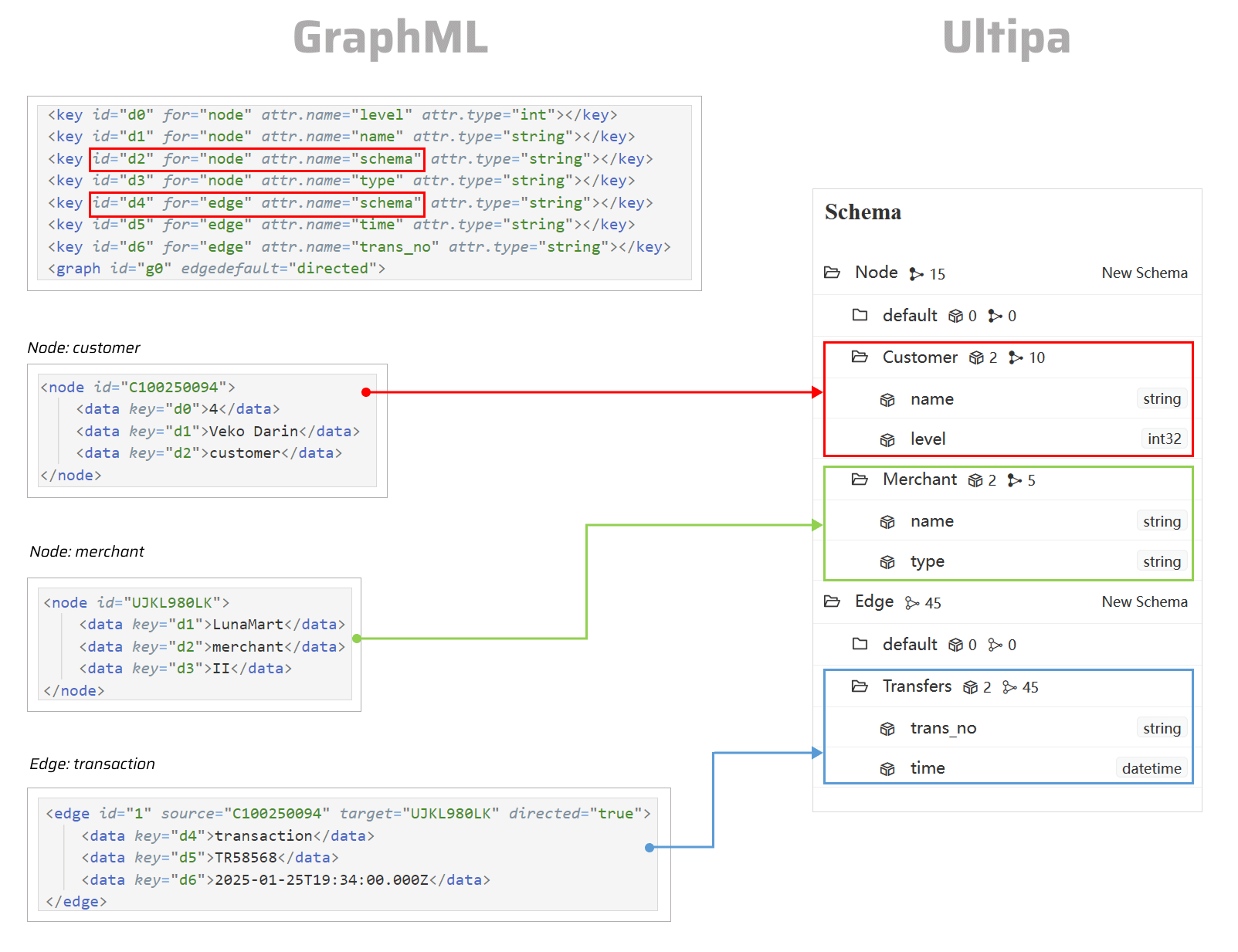
mode: Set tographml.graphml: Specify the GraphML file path andattr.nameas the schema in Ultipa graph.server: Provide your Ultipa server details and specify the target graph (new or existing) for data import.settings: Set global import preferences and parameters.
import.sample.graphml.yml# Mode options: csv/json/jsonl/rdf/graphml/bigQuery/sql/kafka/neo4j/salesforce
mode: graphml

# GraphML configurations
graphml:
  # The file path on local machine
  file: "./trading.graphml"
  # The value of attr.name to be used as the schema in Ultipa graph; it defaults to "schema"
  schema: "schema"

# Ultipa server configurations
server:
  # Host IP/URI and port; if it's a cluster, separate multiple hosts with commas
  host: "10.11.22.33:1234"
  username: "admin"
  password: "admin12345"
  # The new or existing graph for data import
  graphset: "myGraph"
  # If the above graph is new, specify the shards where the graph will be stored
  shards: "1,2,3"
  # If the above graph is new, specify the partition function (Crc32/Crc64WE/Crc64XZ/CityHash64) used for sharding
  partitionBy: "Crc32"
  # Path of the certificate file for TLS encryption
  crt: ""

# Global settings
settings:
  # Path of the log file
  logPath: "./logs"
  # Number of rows included in each insertion batch
  batchSize: 10000
  # Import mode: insert/overwrite/upsert
  importMode: insert
  # Stops the importing process when error occurs
  stopWhenError: false
  # The maximum threads
  threads: 32
  # The maximum size (in MB) of each packet
  maxPacketSize: 40
  # Timezone for the timestamp values
  # timeZone: "+0200"
  # Timestamp value unit, support ms/s
  timestampUnit: s
Execute Import
Execute the import by specifying the configuration file using the --config flag:
Bash./ultipa-importer --config import.sample.graphml.yml
